Connect your AI assistant
AI time tracking for Claude and ChatGPT
Log time, generate reports and find insights through your AI assistant.
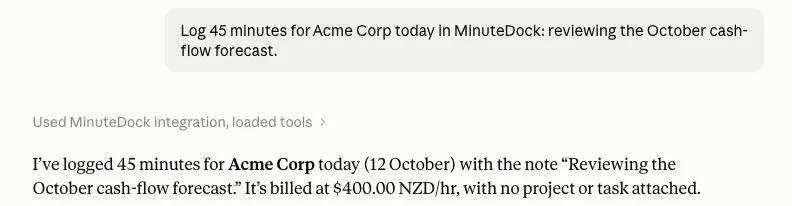
Describe your work to save it in MinuteDock, or ask questions about your clients, projects and team’s hours.



Claude, ChatGPT, Cursor, Grok & other MCP-ready assistants
Turn your logged hours into reports and insights
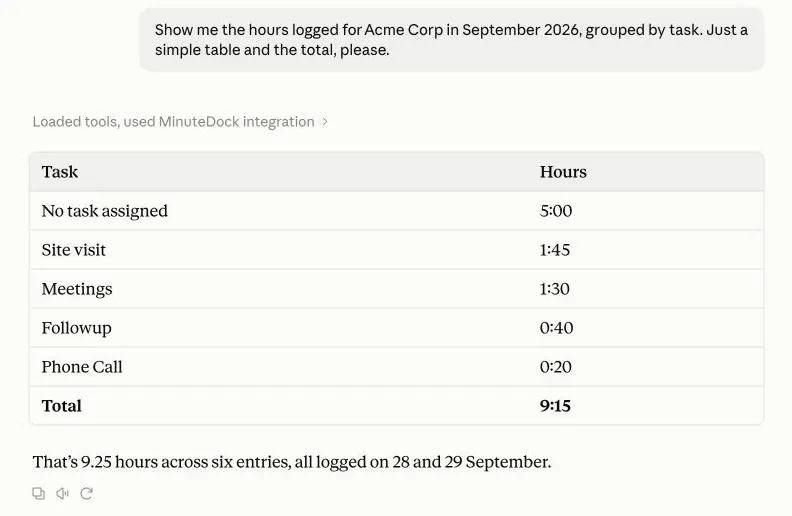
Analyse your hours
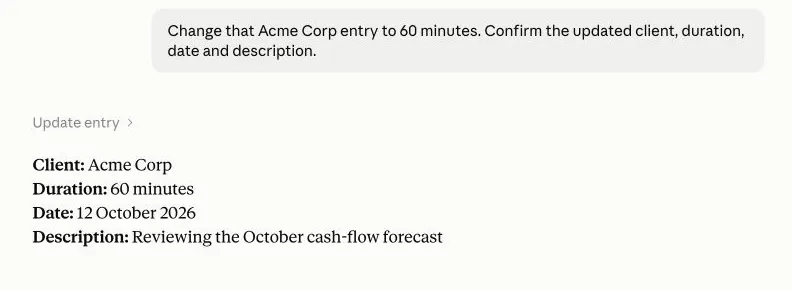
Log missed time
Match clients and projects
Compare client and project hours
See which clients and projects take the most time. Ask for task breakdowns or month-to-month comparisons to spot changes in your team’s workload.
Review unbilled work by client
Summarise billable work in progress by client or project. Identify older unbilled hours and review the entries behind each total before your next billing run.
Automate your weekly time reports
Schedule Claude to summarise your MinuteDock hours or prepare client reports each week. Choose what to include and when to run it.
Requires a paid Claude plan and your MinuteDock connection.
 Tammy ShugartOwner, SheetCake
“It helped me find a rhythm and gave me a way to really keep track of my days.”
AI time tracking FAQs
- Which AI assistants work with MinuteDock?
Claude, ChatGPT, Cursor, Grok and other assistants that support MCP connectors. See the setup guide for your assistant.
- Does this run a timer or track my activity in the background?
No. Your assistant saves the work and duration you provide. To track time as you work, use MinuteDock’s Timer.
- What can the assistant see and change?
It can find clients and projects, create, edit or delete Time Entries, and report on your hours. Your MinuteDock permissions apply. You can disconnect anytime.
- Can my assistant send an invoice?
No. Use your assistant to review unbilled hours, then create and send invoices through MinuteDock’s invoice builder and your accounting app.
- Do I need to pay extra to connect?
MinuteDock includes the AI connection at no extra cost. Your assistant may require a paid plan; check the setup guide for requirements.
- How do I connect my assistant?
Add MinuteDock in your assistant’s connector settings and sign in. Follow the setup guide to connect an existing account or your free trial.
Try AI time tracking free for 14 days
Connect your assistant to log time and explore your reports. No credit card needed.