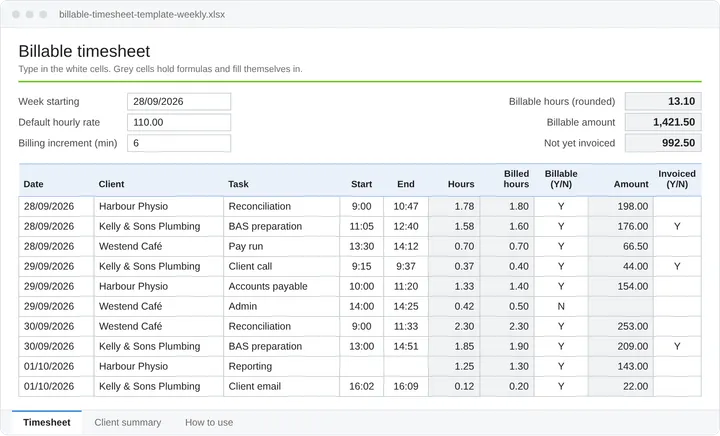
What's in the template
Timesheet records your work; Client summary totals hours and amounts by client; How to use contains setup instructions. The monthly file adds a Retainer tab. Enter data in white cells; grey formula cells are locked.
The columns you fill in
- Date
- The day you did the work.
- Person
- Who did it, if more than one of you shares the file.
- Client
- Spell each client the same way every time; the summary matches on it.
- Project
- Optional: the job or engagement.
- Task
- The type of work, such as BAS preparation, a site visit or a client call.
- Description
- What a client would recognise on an invoice.
- Start
- Start time, such as 9:00.
- End
- End time. Work that runs past midnight still adds up.
- Break (min)
- Minutes to take off the start-to-end time.
- Hours, if no start/end
- Decimal hours instead of times: 1.5 is an hour and a half. The minutes to decimal converter has the full chart.
- Billable (Y/N)
- Y for time you’ll charge, N for time you won’t.
- Rate
- Leave blank to use your default rate, or type a different one for this row.
- Invoiced (Y/N)
- Y once the row is on an invoice, so it drops out of “not yet invoiced”.
How the totals work
- Hours
- End time minus start time, less the break. If there are no times, the hours you typed.
- Billed hours
- Hours rounded up to the next billing increment. An exact multiple stays as it is; 0 means no rounding.
- Amount
- Billed hours × the row’s rate (or your default rate), to the cent. Rows marked N show nothing.
Each row rounds separately. At six-minute increments, two 7-minute calls bill 0.4 hours in total. See billing increments explained for rounding examples and policy guidance.
The Client summary
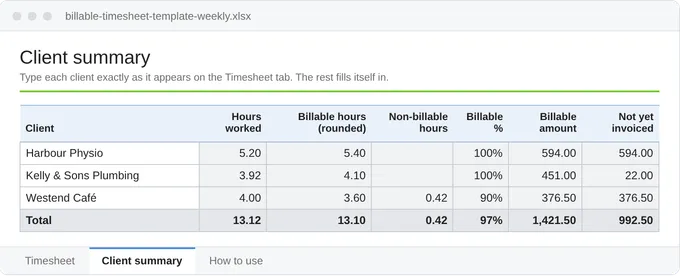
Enter client names exactly as you log them. The summary shows hours worked, rounded billable hours, billable percentage, charges and uninvoiced amounts. Unlisted names appear under “Other clients”. The weekly file also shows daily totals.
Building your own? Copy the formulas
These are the formulas in row 11 of the file. Increment and DefaultRate are named cells at the top of the sheet; in your own spreadsheet, swap in the cells that hold your increment and rate. They work in Excel, Google Sheets, LibreOffice and Numbers.
Hours (column K)
Billed hours (column L)
Amount (column O)